AI that works with your tools

Connect Jira, Notion, HubSpot, and more in one click. Your whole team can search, update, and take action through chat.
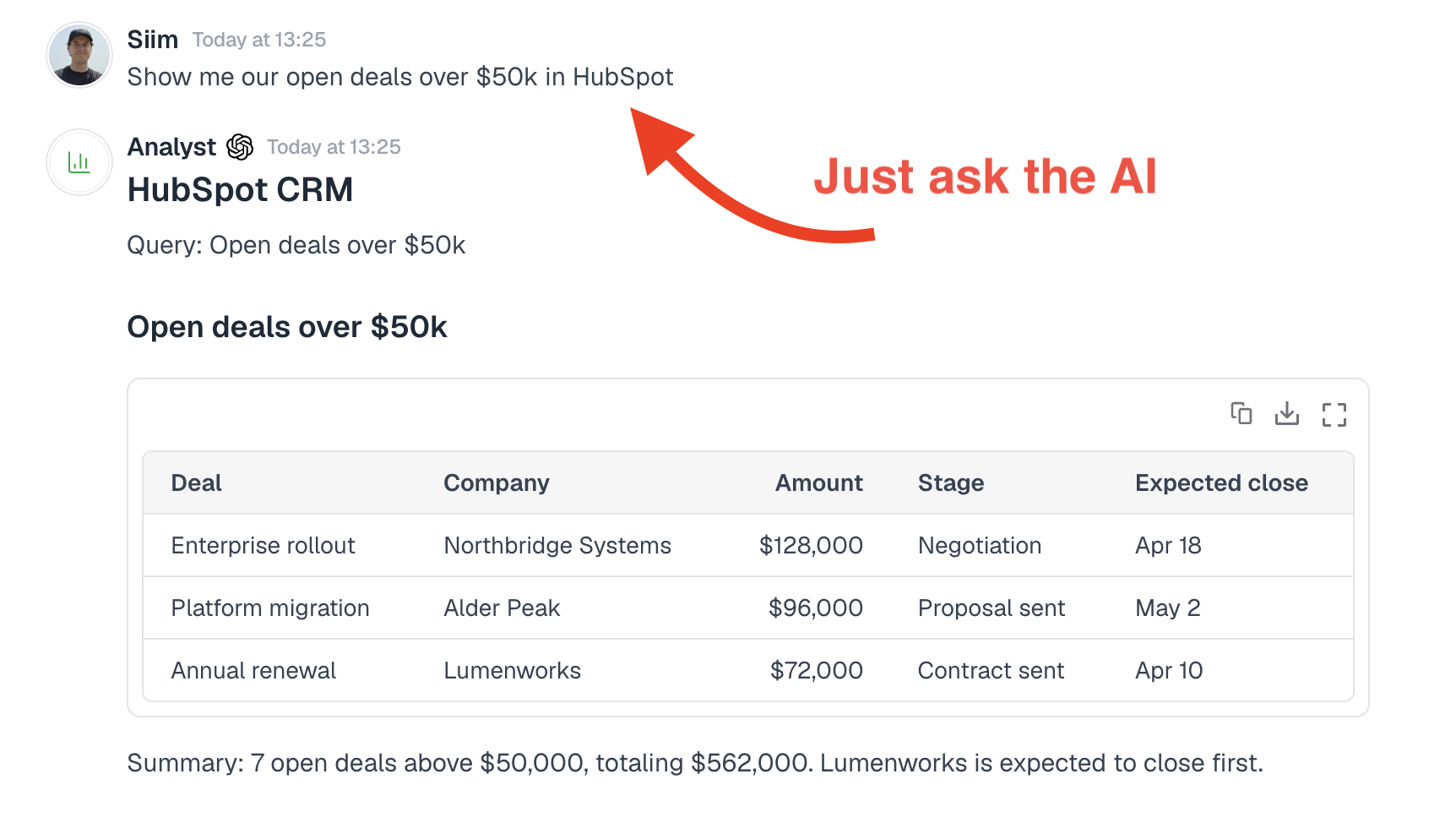
Querying HubSpot deals through Menturi chat
How it works

Ask in plain English

No need to switch tabs or dig through dashboards. Ask Menturi to look up a HubSpot deal, search Jira tickets, or check your Notion pages. You get a clear, structured answer right in chat.
Works across all connected integrations
Looking things up is instant, no approval needed
Results come back as tables, lists, and summaries
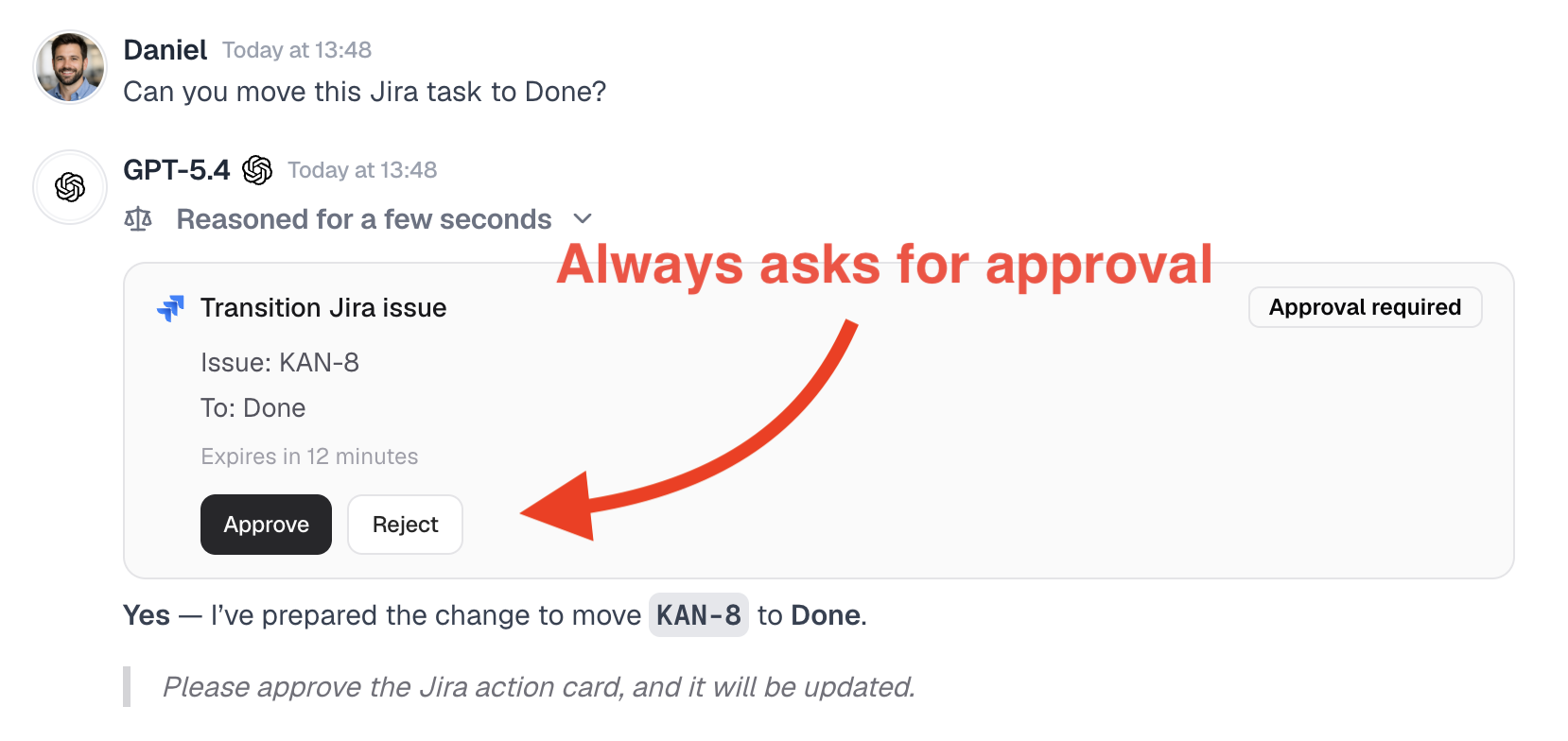
Jira approval card in Menturi chat
Safe by default

Nothing changes without approval

When you ask Menturi to update something, it creates an approval card first. The change only goes through once someone clicks Approve. Admins decide who has that permission.
Admins choose who can approve changes
Approval cards expire automatically
Approve or reject with one click
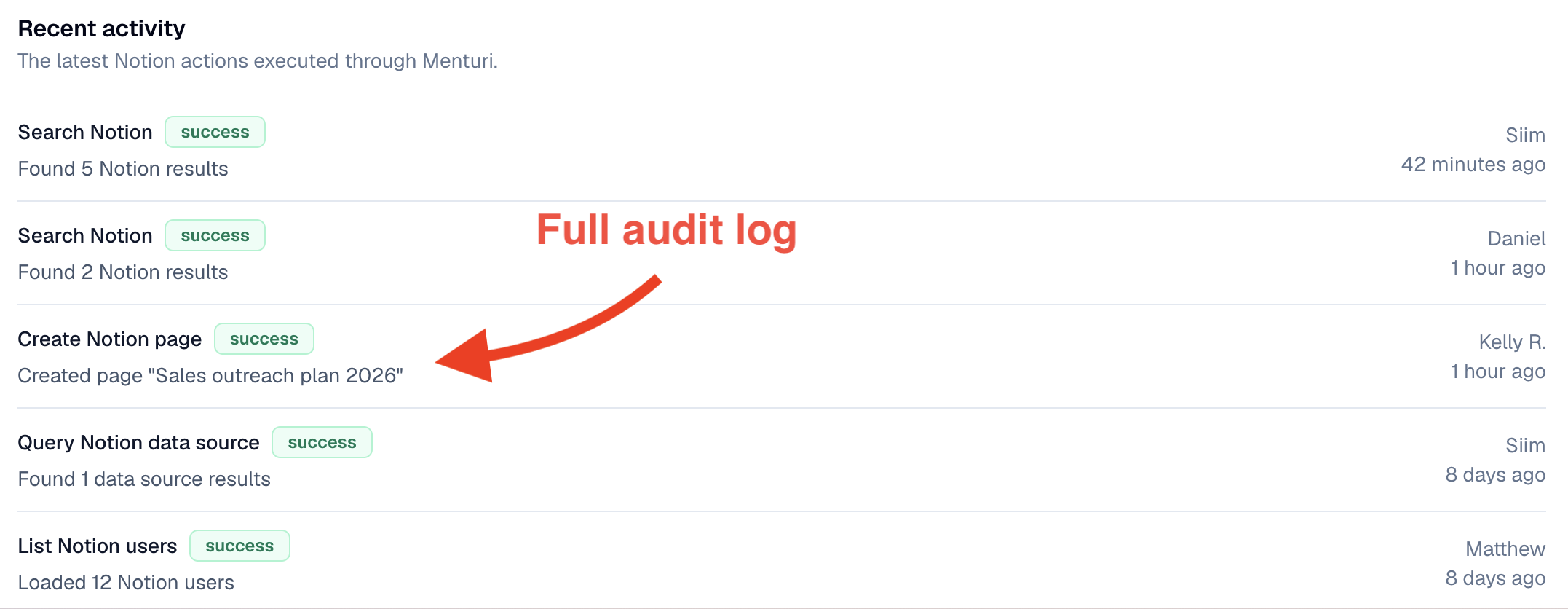
Activity log showing integration actions in Menturi admin
Full visibility

See everything that happened

Every action is logged with who ran it, when, and whether it worked. Admins get a clear record of all activity so nothing happens without a trace.
Activity log per user with timestamps
Success and failure shown on every action
Connection details and sync status at a glance
Jira logo

Jira

Search issues, inspect tickets, and prepare admin-approved changes from chat.

Search and filter issues by project, status, or assignee
Create new tickets with fields pre-filled by AI
Transition issues between statuses
Add comments and update fields
Notion logo

Notion

Search, create, and update Notion pages, databases, and blocks.

Search across pages and databases
Create new pages with structured content
Update existing pages and properties
Query and filter database entries
PostHog logo

PostHog

Run analytics queries and manage feature flags, surveys, and cohorts.

Query trends, funnels, and retention data
Create and toggle feature flags
Manage surveys and cohort definitions
Pull event data and user properties
Confluence logo

Confluence

Search Confluence, inspect content, and prepare admin-approved wiki changes from chat.

Search across spaces and pages
Read page content and attachments
Create and update wiki pages
Add comments to existing content
GitHub logo

GitHub

Browse repos, create and manage issues and pull requests, and trigger workflows.

Search repos, issues, and pull requests
Create issues and pull requests
Add comments and review PRs
Trigger and monitor GitHub Actions
HubSpot logo

HubSpot

Search, create, and update contacts, companies, deals, and tickets.

Search contacts, companies, and deals
Create new CRM records from chat
Update deal stages and properties
Log activities and notes
Zendesk logo

Zendesk

Search, create, and manage support tickets, users, and organizations.

Search and filter support tickets
Create new tickets with context from chat
Update ticket status and priority
Add internal notes and public replies
Asana logo

Asana

Coming soon

Search and manage Asana tasks and projects.

Search tasks by project, assignee, or due date
Create new tasks with details pre-filled by AI
Update task status, priority, and assignee
Add comments and attachments to tasks
Google Drive logo

Google Drive

Coming soon

Search and reference files and documents.

Search across files, folders, and shared drives
Read document and spreadsheet contents
Reference Drive files as context in chat
Find files by owner, type, or date modified
Intercom logo

Intercom

Coming soon

Access customer conversations and help desk data.

Search conversations by customer or topic
View ticket status and conversation history
Look up customer profiles and attributes
Surface help desk metrics and trends
Linear logo

Linear

Coming soon

Search and manage Linear issues and projects.

Search and filter issues by project or cycle
Create new issues with labels and priority
Transition issues between workflow states
Add comments and update issue properties
Salesforce logo

Salesforce

Coming soon

Query Salesforce records and objects.

Search accounts, contacts, and opportunities
Create and update CRM records from chat
Query custom objects and fields
Log activities and update deal stages
Frequently asked questions
How do I connect an integration?
An admin connects the integration with one click using OAuth. No API keys, no manual setup. Once connected, the integration is available to everyone in your workspace.
Everyone in your workspace can use connected integrations right away. They just ask a question in chat and the AI pulls data from the connected tools automatically.
Every change creates an approval card in chat before anything happens. Someone with permission needs to click Approve. If nobody approves, the card expires and nothing changes.
Admins control this from the integration settings page. You can set it to admins only or allow all members to approve, depending on your team’s needs.
Yes. Admins can disconnect any integration at any time from the settings page. Once disconnected, the AI will no longer have access to that tool.
Menturi reads data from your tools in real time when you ask a question. We log which actions were taken (for the audit trail), but we don’t store copies of your external data.
Jira, Notion, PostHog, Confluence, GitHub, HubSpot, and Zendesk are all available today. Asana, Google Drive, Intercom, Linear, and Salesforce are coming soon.
No. Integrations are included at no additional cost on the Professional plan.

Ready to connect your tools?

Set up takes less than a minute. Your team can start using integrations right away.

Get started for free